Stream audio · Levels · OBS Studio

WHY YOUR STREAM
COMES OUT
TOO QUIET

Quiet audio has a handful of causes, and they need different fixes, so the first job is telling them apart. Below: four symptoms that all sound like "you are too quiet" to a viewer, what gain, noise gates, compressors and limiters each actually do, and the one thing on that list that keeps working after you have set it.

WHICH ONE
IS YOURS

All four of these reach a viewer as "your audio is quiet", and each one has a different answer. Start with what people actually say in chat, because it usually names the symptom exactly.

Everything is quiet

Viewers turn you up and the whole stream comes up together: voice, game, alerts. Nothing is fighting anything, there is simply not enough level leaving the PC.

Where to look: the gain in front of everything, at the interface or in the source itself, before any filter has a chance to work with it.

Your voice disappears under the game

The microphone sounds fine on its own and vanishes the moment something happens on screen. That is a balance problem rather than a level problem, and turning the whole stream up takes the game up with it.

Where to look: the two sources, separately. A balance can only be set once both sides arrive at a level you can predict.

It is only quiet sometimes

You start the stream at a sensible level, and an hour later you are quiet. Or you lean back. Or you get excited and it clips. Nothing is wrong with the setting: the setting is fixed and a voice is not.

Where to look: nothing on the desk. This one is not a setting to find, it is a level nobody is holding.

The meters look fine and viewers still say quiet

The one that wastes the most time. A peak meter tells you how tall the audio is, not how loud it sounds. Audio can touch the top of the meter all evening and still land quiet, because loudness is an average over time and a peak is a single instant.

Where to look: a loudness reading rather than a peak reading, measured in LUFS.

WHAT EACH FIX
ACTUALLY DOES

Five things get recommended for quiet audio. They are not interchangeable, and four of them cannot do anything about a level that moves while you stream.

INPUT GAIN

One fixed number

Sets how much signal arrives in the first place. It is the right first move when everything is simply too low, and it is worth getting right before anything else, because every tool after it can only work with what gain hands over.

What it cannot do is react. It is one number, applied equally to a whisper and a shout, so it fixes a level that is wrong and not a level that moves.

NOISE GATE

Cleaner, not louder

Closes the channel when nothing is happening, so a fan, a keyboard and a room do not sit underneath everything you say.

It makes the quiet parts cleaner. It makes nothing louder. If a voice is too quiet, a gate does not address it at all.

COMPRESSOR

Works inside the sound

Reduces the distance between the loud and the quiet parts moment by moment, and usually gives back some gain afterwards. It is genuinely useful for evening out a voice, and most streamers should have one.

Used hard it flattens the sound, because that is what it is built to do: it reshapes the audio itself rather than moving the level of it. It is also still working from a threshold you set once, so it does not know that tonight you are sitting further from the microphone.

LIMITER

A ceiling

Stops peaks going past a set point so nothing clips. That is what makes raising a quiet source safe, which is why it belongs at the end of a chain rather than at the start.

On its own it makes nothing louder. It makes louder safe.

HOLDING A LOUDNESS TARGET

Keeps measuring

Measures how loud the output has actually been, over time, and moves the level to keep it where it should be. Slowly, the way a hand on a fader would, rather than moment by moment the way a compressor does.

It is the only item on this list that answers "it is only quiet sometimes", because it is the only one still measuring after you have finished setting it up.

LOUDNESS IS ONLY
KNOWN AFTERWARDS

A peak can be measured the instant it happens. Loudness cannot: it is an average of what has already been heard, so a figure for it only exists once the audio has played. That is the whole reason a level set at the start of a stream is a guess about the rest of the evening, and why a good guess still drifts.

A meter on its own does not solve it either. Watching a number and nudging a fader is exactly the right response, and nobody wants to do that for four hours while also playing, reading chat and talking.

The scale this is measured on is LUFS, and it is worth exactly one paragraph of your attention: it describes how loud something sounds over a stretch of time, rather than how tall its peaks are. Which number to aim at is its own question, answered on what LUFS to stream at.

Fix it before it leaves the PC. Whatever a platform does on its own side happens to the finished mix, after the two sources have already become one signal. Turning a whole stream down does not make a quiet microphone louder against a loud game, so the balance has to be right on the way out.
ONE FILTER
PER SOURCE

OBS applies audio filters to a source, and there is no master bus to put one on, so anything holding a level in OBS holds one source at a time. Put it on the microphone and the voice is held. Add it to Desktop Audio and the game is held too.

The mixer's volume slider still does what it always did, so the balance between held sources stays yours to choose. The difference is that it becomes a balance you set once rather than one you chase all night, because both sides now arrive at the same level every stream.

That makes a loudness target a mixing tool inside OBS, and a good one. Software built around a master bus can hold a whole finished programme on a number instead, which is a simpler version of the same job.

THE LAST ITEM
ON THE LIST

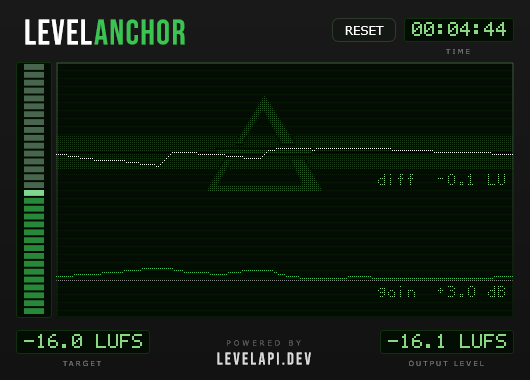
LevelAnchor is a free Windows VST plugin that does exactly that job. It measures the programme loudness of a source continuously and moves the gain to keep it on the target you set, slowly enough that you do not hear it working and without a compressor's squashing.

One control: a target from -24 to -8 LUFS, with -16 already set. A limiter at the end holds the ceiling at -1 dB, so pulling a quiet source up cannot push peaks into clipping. Set the target once and there is nothing to watch after that.

Loading a VST filter into OBS means a few nested menus, once. The LevelAnchor page walks through the OBS setup step by step, with a screenshot of every dialog, and covers the Windows SmartScreen warning that any new installer produces.

The LevelAnchor plugin window, holding -16.1 LUFS against a -16.0 LUFS target
The deviation from target, the gain currently applied, and the integrated output level. Set the target and close the window.

BEFORE YOUR
NEXT STREAM

  • Check the boring one first. If everything is quiet together, gain at the interface or in the source is where it starts, and no filter can make up for what never arrived.
  • Listen to what chat actually says. "I cannot hear you over the game" is a balance problem. "You are quiet and I am at 100%" is a level problem. They have different fixes and the words tell you which.
  • Stop reading the peak meter as loudness. A tall waveform and a quiet stream sit together comfortably. Loudness is the average, and it is measured in LUFS.
  • Pick a target and stay on it. Consistency is worth more to a listener than any particular number, and the LUFS target to stream at covers which one to pick when nobody has handed you a figure.
  • Hold each source, then balance them. A balance set between two moving levels comes undone by itself. Set between two steady ones, it holds.