One control
A LUFS target from -24 to -8, default -16, set on the strip down the left side. That is the entire set of settings.
Free VST plugin · Windows · OBS Studio
Set one loudness target. LevelAnchor measures that source's programme loudness continuously and moves its output gain to keep it there, slowly enough that you do not hear it working, and without a compressor's squashing. Then you leave it alone. Put one on each source and your mixer faders finally stay where you set them.
Deviation against the target line, the gain currently applied, and the integrated output level. You do not have to monitor it for it to work.
The video
The same stream twice: once with the balance drifting the way it does, and once with LevelAnchor on each source. Then the minute of setup in OBS. The faders never move in either pass, and headphones make it obvious.
The idea
Your microphone runs hot, your game audio runs quiet, and your viewers ride the volume slider on Twitch or YouTube. A fixed gain never quite holds it, because loudness is only known after the audio has played.
LevelAnchor measures continuously and corrects continuously. You pick a target, and the default of -16 LUFS is a sensible one for streaming. That is the whole interface: nothing to tune, nothing to dial in, and nothing you need to understand LUFS to get right.
A LUFS target from -24 to -8, default -16, set on the strip down the left side. That is the entire set of settings.
After the gain change the signal passes an EBU spec limiter with its ceiling at -1 dB, so pulling a quiet source up cannot push peaks into clipping.
It does its job unattended. The interface is there when you want to look at it, not something to keep an eye on.
No account, no activation, no update check, no telemetry. There is no network code in the plugin at all.
Install
The release page carries two files: an installer that puts the plugin where OBS looks, and a ZIP for people who manage their own plugin folder. Either one gives you the same plugin.
It is signed by tlemon.com. One page is worth a glance: the folder page. OBS reads Program Files\Common Files\VST2, and it is ticked already. Leave it that way unless you know your host uses a different folder.
.jpg)
Managing your own plugin folder? Take the ZIP. It holds the same plugin as a single DLL. Unzip LevelAnchor.dll into C:\Program Files\Common Files\VST2 and go straight on to the OBS setup below.
Set it up in OBS
OBS keeps its plugin filters a few menus deep. Work through these steps once and you are finished with them: LevelAnchor is saved into your OBS profile and comes back with it, every stream, with nothing to redo.
Here is where you end up.
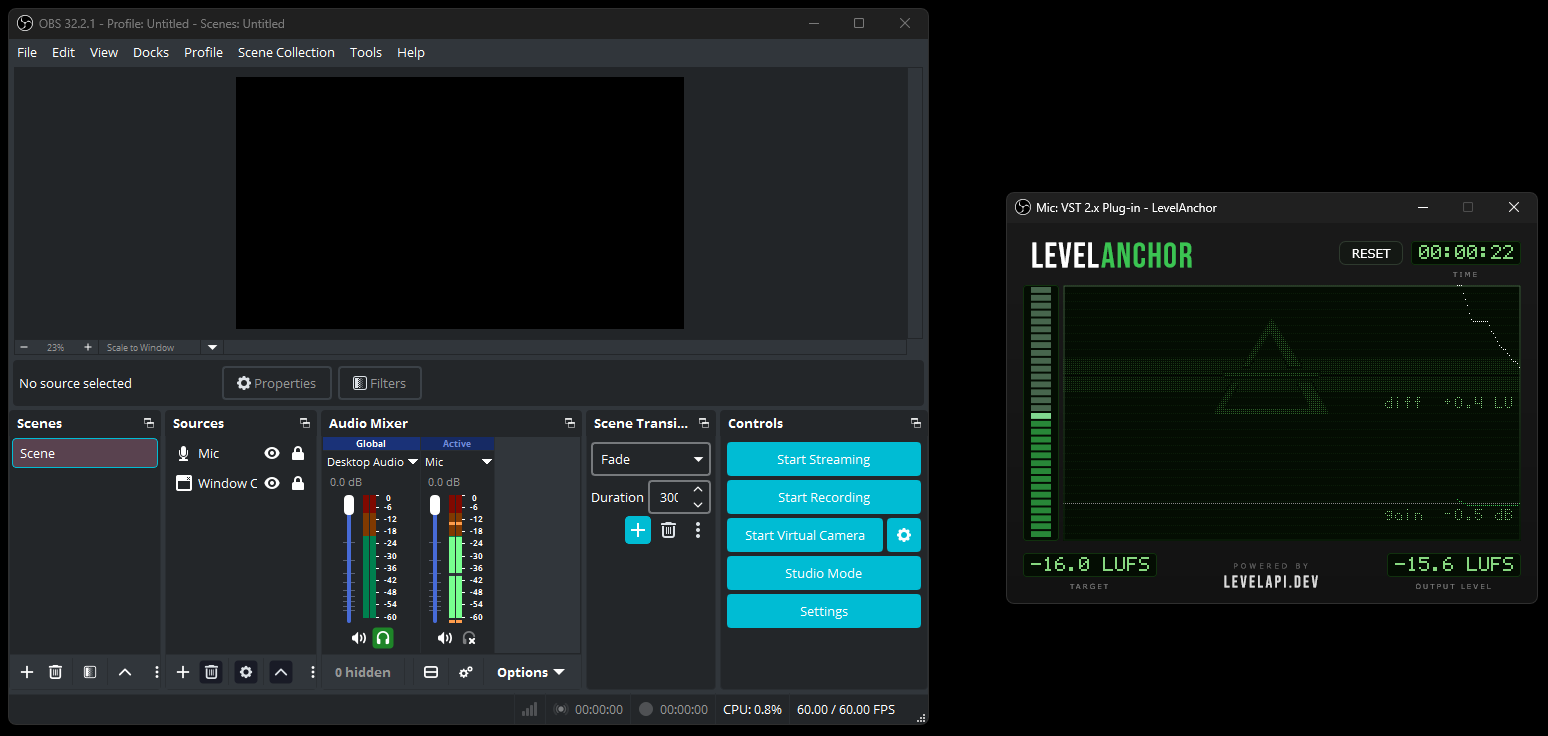
In the Audio Mixer, right-click anywhere on the channel you want held, your mic or Desktop Audio, and choose Filters.
Clicking the channel name at the top of the strip opens the same menu.
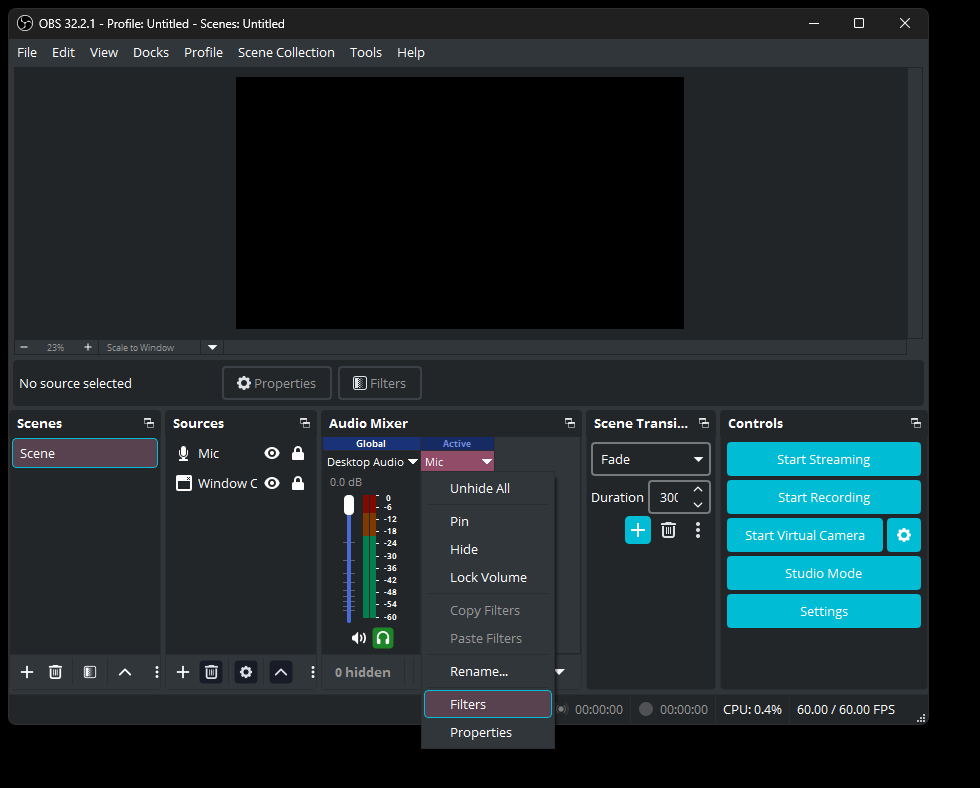
Click + at the bottom left of the filter list, then pick VST 2.x Plug-in, the last item on the list. It is named after the plugin format rather than after anything it does.
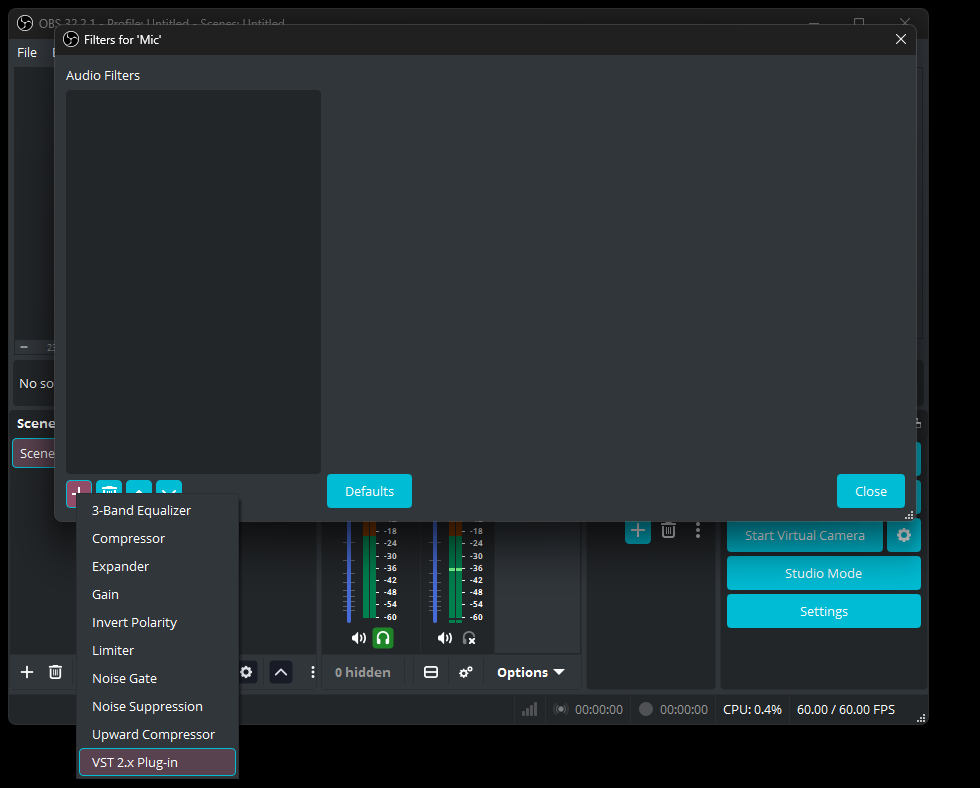
OBS asks every filter for a name. The one already filled in is fine.
Click OK and carry on.
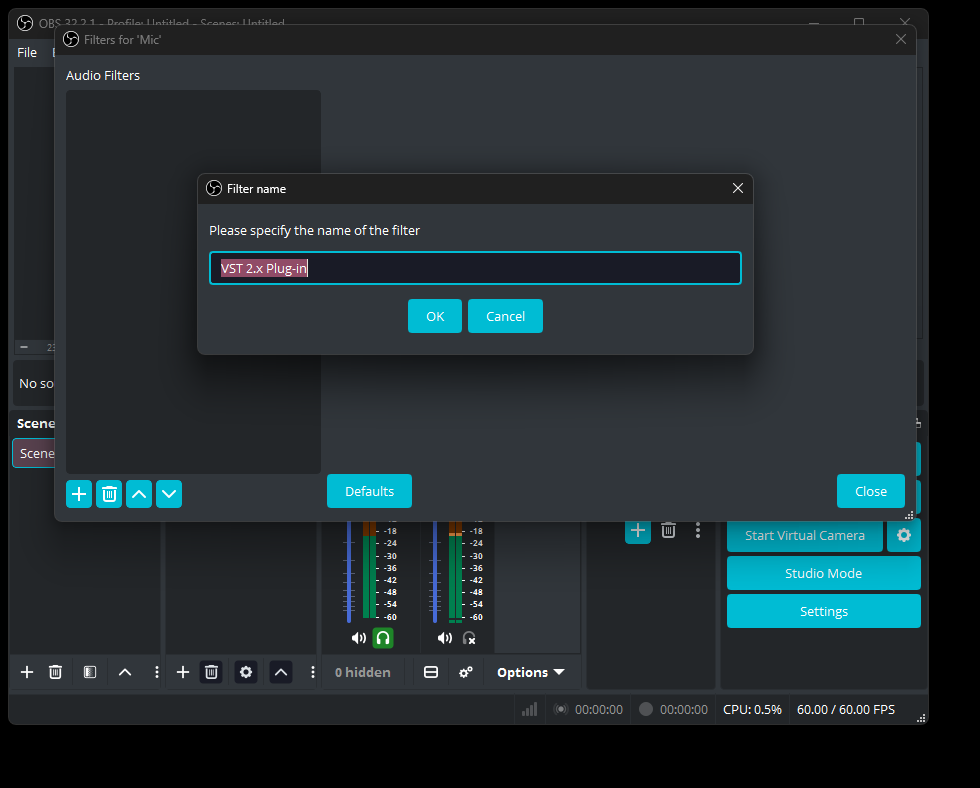
The filter exists but is still empty. Open the dropdown and pick LevelAnchor.
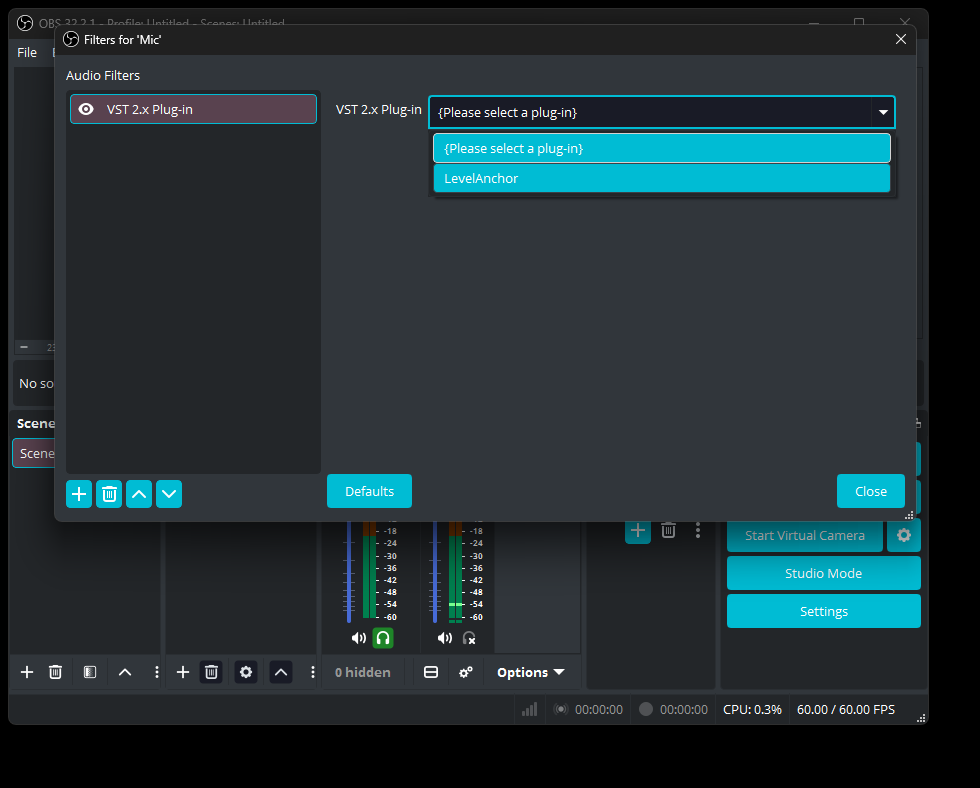
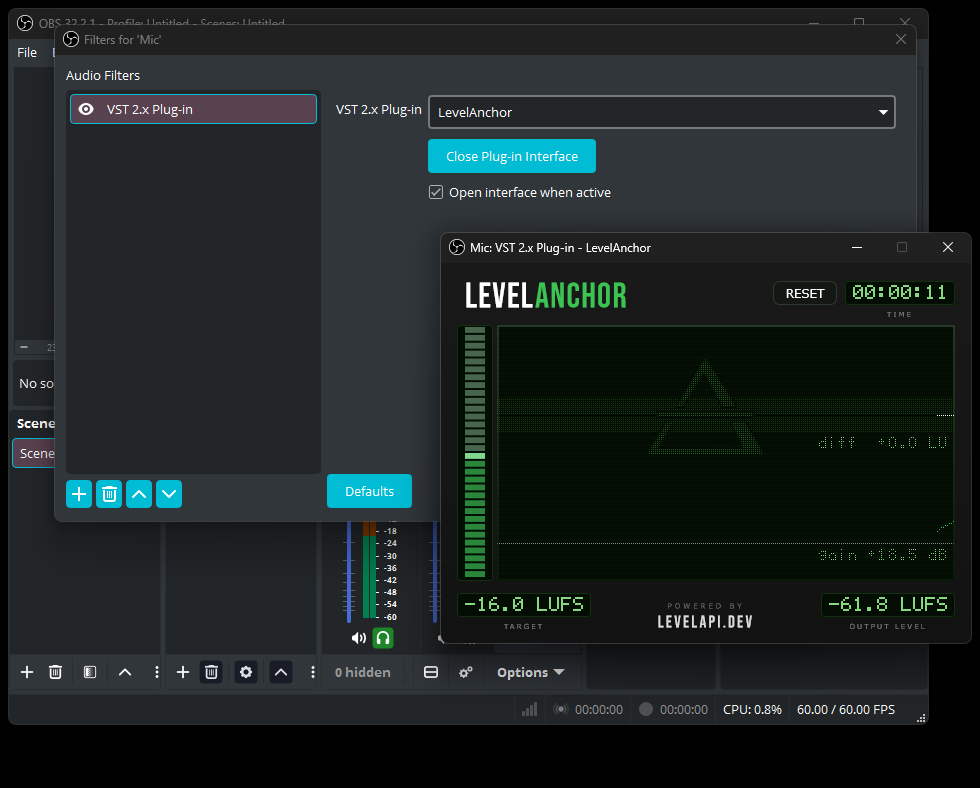
The plugin window opens and starts measuring. Open interface when active decides whether it appears; untick it if you would rather not see it.
Click Close on the filters window.
Your mic, Desktop Audio, anything else that is live. Same steps each time, and leave every one of them at -16.
Then set the balance the way you always did, on the mixer's volume sliders. The difference is that they now stay where you put them.
Talk for a moment and watch the readout on the right. It settles onto your target and stays there, and the gain figure on the screen shows how much LevelAnchor is applying to hold it.
Screenshots: OBS Studio 32.2.1
Questions
LevelAnchor sits on one source, so it holds that source. Put it on your microphone and your voice comes out at the same level every stream, whether you sat close to the mic tonight or leaned back all evening. Add a second copy to Desktop Audio and the game gets held the same way.
How loud the game sits under your voice is still yours to choose, on the mixer's volume slider as always. With both sides held steady that is a balance you set once, rather than one you chase all night.
Telling this apart from the other things that sound like quiet audio takes a minute: why stream audio comes out too quiet goes through the symptoms one at a time, and what each common fix actually does.
OBS has no filter slot on the master output bus. Filters live on individual sources, so that is where LevelAnchor goes.
It is also the better place for it: holding each source separately is what keeps the balance between them steady, and the balance is the thing that actually drifts over a long stream.
Whatever a platform does on its side, it happens to the finished mix, and it happens after the mistake. Turning a whole stream down does not make a quiet microphone louder against a loud game, because by then the two are one signal. The balance has to be right when it leaves your PC, and that is what LevelAnchor is for.
If nobody has given you a number, use the one already set: -16 LUFS. It is a sensible level for a talking stream and you do not have to defend it to anyone.
What your viewers notice is not the number, it is the number moving, so a stream that holds -16 all night is easier to listen to than one that is briefly perfect and then quiet for an hour. If you are handed a figure by a platform, a network or someone you stream with, the strip goes from -24 to -8 and you set it once.
Where -16, -23 and -24 come from, and why the same audio gives several different LUFS readings, is on what LUFS to stream at.
No, and the difference is the point. A compressor works inside the sound: it pushes the loud parts down toward the quiet ones, moment by moment, which is why heavy use of one makes a voice sound flat and close.
LevelAnchor works on the level instead. It measures how loud the output has actually been and moves the whole thing up or down slowly, the way you would nudge a fader if you sat watching a meter all night. Your voice keeps its own light and shade. A limiter at the end holds the ceiling at -1 dB, so pulling a quiet source up cannot clip.
No. You can leave it at -16 and pull its fader down, which works fine.
If it is very quiet, you can also set that instance to a lower target instead, so less gain is being applied in the first place and the limiter inside the plugin has less to do. Either way works. The second is tidier.
No. LUFS measures how loud something sounds over a stretch of time, rather than how tall its peaks are, which is why audio can look healthy on the meters and still be the quiet stream on the front page. That is the whole of it, and the plugin arrives with a target already set. If nothing on your stream sounds wrong to you, there is nothing here to learn.
The longer version is there if you want it: what LUFS to stream at covers the number, the windows it is measured over, and why the target is per source in OBS.
Licence
LevelAnchor is free for individuals and for organizations under €500k of annual revenue, including on monetized streams: nothing to pay, nothing to register, nothing to sign. Above that threshold, or to bundle it into another product, a LevelAPI licence is required.
The threshold is a hard line, not an approximation.
The plugin's source code is separately MIT licensed; the LevelAPI2 engine inside it is not.
.jpg)
For developers
LevelAnchor is free because it is the shortest way to hear what the engine inside it does. That engine is LevelAPI2, a C library licensed to companies who need EBU R128 or ATSC A/85 loudness compliance inside their own product.
The plugin around it is open source, and it is a real integration rather than a sample: the released binary is built from the same tree, and LevelApiDynamic.cpp is the actual code that loads the library and calls it from an audio callback. If you are evaluating LevelAPI, that file will tell you more than a datasheet. The calls it makes are described in the realtime adjuster chapter of the LevelAPI2 documentation.
MIT licensed, on GitHub. The loader, the DLL search order, the certificate handling, and what the plugin does when the library is not there.
View on GitHub